


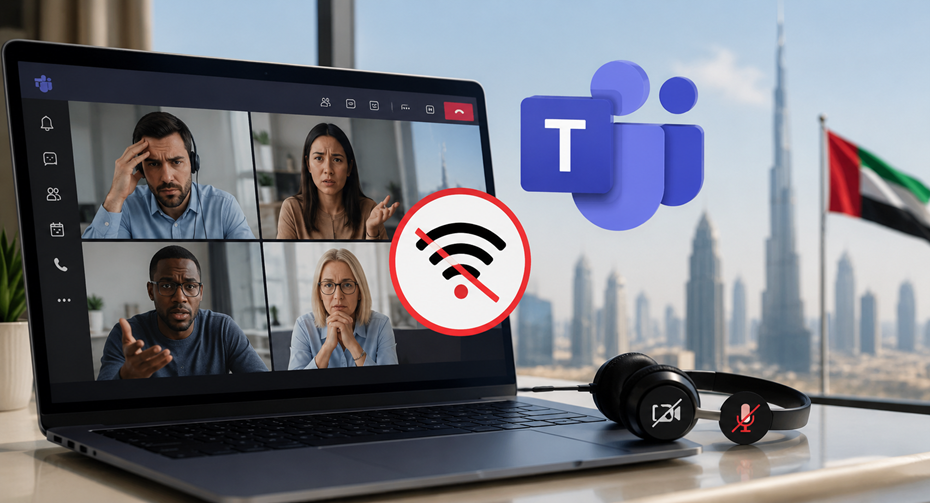
You’re sitting in a Business Bay office tower. Your 9 AM stand-up call won’t connect. Your camera freezes on your Marina apartment’s Wi-Fi. Sound familiar?
You’re not alone. The UAE runs on Microsoft Teams. Almost every office in Dubai, Abu Dhabi, and Sharjah uses it daily. But the UAE’s telecom rules are unlike most countries. That trips people up constantly.
This guide fixes that. We’ll walk through real causes, real fixes, and the local rules that actually matter. No fluff. No guesswork.
Quick Answer: Is Microsoft Teams Allowed in the UAE?
Yes. Teams is fully legal and works across the UAE. The Telecommunications and Digital Government Regulatory Authority (TDRA) treats it as licensed business software rather than a consumer calling app. Recent relaxations allow approved services like Zoom and Microsoft Teams for business use.
That’s different from apps like WhatsApp calling or FaceTime. Those stay blocked for regular consumer use. Teams doesn’t carry that restriction because it ships as part of licensed enterprise software, not a free consumer app.
So if your Teams call fails, it’s not because the UAE is blocking you. Something else is wrong. Let’s find it.
Why UAE Users Face More Teams Issues Than Most Countries
The UAE has near-universal connectivity. There were 11.3 million individuals using the internet in the United Arab Emirates at the end of 2025, with an internet penetration rate of 99.0 percent. The country also has the world’s fastest mobile internet, with median download speeds of 614.42 Mbps as of early 2026.
So the internet isn’t the bottleneck for most people. The real culprits are usually:
- Corporate firewalls filtering VoIP traffic differently than in other regions
- Confusion between Teams-to-Teams calls and calling real phone numbers
- Outdated apps running on managed company devices
- Strict device permission settings on iOS and Android
- Org-level Teams policies set by IT admins
Knowing this changes how you troubleshoot. You stop blaming your internet and start checking the actual cause.
Step 1: Confirm What Type of Call You’re Actually Making
This trips up more people than anything else. There are three totally different things happening under “Teams calling.”
Teams-to-Teams calls. You open a chat with a colleague and hit the audio or video button. This should always work if you’re both signed in and online.
Teams meetings. You join or schedule a meeting. Video, audio, and screen sharing all run through this. Most guests can join without being part of your company’s tenant.
Calling a real phone number. This needs a Teams Phone license and a PSTN connection. And here’s the UAE-specific catch: as of 2026, Microsoft has not made Calling Plans available for purchase in the UAE. Attempting to activate one on a UAE tenant won’t show the UAE in the country selector.
If your company needs to call outside phone numbers from Teams, it must use Direct Routing. This means partnering with a TDRA-licensed SIP trunk provider through Etisalat or du. Some vendors offer Teams calling via unlicensed international VoIP routes, which violates UAE TDRA regulations. Always confirm your provider’s license before signing anything.
So if someone tells you “Teams calling doesn’t work in the UAE,” ask which type they mean. Nine times out of ten, it’s the phone number issue, not a Teams problem at all.
Step 2: Update Your App and Restart Everything
Boring, but it fixes more issues than people expect.
- Update Teams on desktop, mobile, or browser to the latest version.
- Close Teams completely — don’t just minimise it.
- Restart your device.
- Reopen Teams and sign back in.
- Try a test call with a colleague.
If you’re on the web version, update your browser too. Old Teams builds and old browsers cause dropped calls, frozen video, and login loops more often than people realize.
Step 3: Rule Out Your Internet Connection
Video calls need a stable, consistent connection. Speed alone doesn’t guarantee that.
Try these:
- Switch from mobile data to Wi-Fi, or vice versa.
- Move closer to your router.
- Disconnect other devices hogging bandwidth.
- Restart your router.
- Test Teams on a second network — home Wi-Fi, office Wi-Fi, or mobile hotspot.
If Teams works fine on one network but fails on another, that’s your answer. It’s a network issue, not a Teams issue. This single test saves hours of guessing.
Step 4: Check Microphone and Camera Permissions
Teams can join the call fine and still leave you muted or invisible. Permissions are almost always the reason.
On Windows:
Go to Settings → Privacy & security → Microphone and confirm Teams has access. Then check Settings → Privacy & security → Camera the same way.
On mobile (iOS or Android):
Open your phone’s app settings. Find Microsoft Teams. Confirm it has permission for microphone, camera, and mobile data. Restart the app after any change.
Corporate-managed phones in UAE offices often have these permissions locked by default via mobile device management (MDM) profiles. If you’re on a company device and permissions look greyed out, that’s an IT policy — not something you can fix from your settings menu.
Step 5: Test Your Audio and Video Devices Inside Teams
Open Teams Settings → Devices. Confirm the right microphone, speaker, and camera are selected. Bluetooth headsets frequently get misselected after reconnecting.
Quick fix for a misbehaving Bluetooth headset: disconnect it, reconnect it, and test again. If it still fails, switch temporarily to your laptop’s built-in mic and camera. That isolates whether the hardware or the software is the problem.
Step 6: Check Whether Your Organization Restricted Calling Features
Many UAE offices run tightly managed Microsoft 365 tenants, especially in government, banking, and healthcare. IT admins can control:
- IP audio and IP video permissions
- Video conferencing access
- Private call permissions
The most restrictive policy applied to you always wins, even if a broader policy technically allows more. If your call or video button is missing, greyed out, or disabled entirely, this is almost certainly the reason. Contact your Microsoft 365 administrator directly — this isn’t something you can override from your own device.
Step 7: Check Firewall and Corporate Network Settings
This matters more in the UAE than in most regions, because many offices run additional network-layer filtering on top of standard corporate firewalls.
Microsoft documents UDP ports 3478 through 3481 as required for Teams media traffic, with a fallback to TCP when needed. If your office network blocks or throttles these ports, calls will connect but audio and video will lag, freeze, or drop.
If Teams behaves differently on your office Wi-Fi than on your home network or mobile data, flag it to your IT team. Ask them to review the official Teams network and firewall requirements. Don’t try to change corporate firewall settings yourself — that’s an IT job, and one wrong change can affect the whole office.
Step 8: Sign Out and Sign Back In
Authentication glitches happen more often than people admit. The fix is almost always the same:
- Sign out of Teams completely.
- Close the app.
- Restart your device.
- Reopen Teams and sign in again.
- Start a test call.
Try Teams on the web version too. If it works there but not on desktop, the issue is local to your installed app, not your account.
Step 9: Test a Meeting Instead of a Direct Call
If a one-to-one call won’t connect, try joining a scheduled meeting instead. This narrows down the problem fast:
| What works | What it tells you |
|---|---|
| Meetings work, direct calls don’t | Check calling policies or account permissions |
| Audio works, video doesn’t | Check camera permissions and video policy |
| Nothing works at all | Investigate internet, firewall, app, or account |
This one test often saves an entire support ticket’s worth of back-and-forth.
Step 10: Understand Teams Phone and PSTN Calling in the UAE
A lot of confusion in the UAE stems from the assumption that any Teams account can dial a standard mobile or landline number. It can’t, by default.
To call real phone numbers from Teams, your company needs one of these setups:
- Microsoft Calling Plans — not available for UAE tenants as of 2026
- Operator Connect — depends on carrier availability in the UAE
- Direct Routing — the standard route, requiring a TDRA-licensed SIP trunk through Etisalat or du
By pairing Direct Routing with a licensed UAE provider, Teams becomes a fully compliant, enterprise-grade phone system rather than just a meetings app. If you can call colleagues inside Teams but can’t dial an external UAE or international number, this is a licensing and setup issue on your company’s side — not a fault with your microphone or Wi-Fi.
Step 11: Try a Completely Different Network
If you’ve checked everything and calls still fail, test another trusted network entirely:
- Home Wi-Fi
- Mobile data
- A different trusted Wi-Fi network, like a coworking space
Compare behavior across all three. If Teams works on some networks but not others, that points to a network-side issue — most likely firewall or proxy filtering, not the app itself.
Step 12: When to Contact IT or Microsoft Support
If nothing above resolves it, gather this before reaching out:
- Your device type: Windows, Mac, iPhone, or Android
- Whether it’s audio, video, or both failing
- Whether it happens on direct calls, meetings, or both
- Any exact error message shown
- Whether Teams works on a different network
- Whether coworkers face the same issue
This turns a vague “Teams isn’t working” ticket into something your IT admin can diagnose in minutes rather than hours.
Quick Checklist: Fixing Teams Calls in the UAE
- Confirm whether it’s a Teams call, a meeting, or a PSTN call.
- Update the Teams app and your browser.
- Check your internet connection on multiple networks.
- Allow microphone and camera permissions.
- Verify the correct audio and video devices in Teams settings.
- Sign out, restart, and sign back in.
- Test a meeting instead of a direct call.
- Ask IT about calling policies if buttons are missing.
- Have IT review firewall and proxy rules for UDP ports 3478–3481.
- For PSTN calling, confirm your company uses a TDRA-licensed Direct Routing provider.
UAE Connectivity at a Glance
A few numbers worth knowing if you work in IT support or manage remote teams in the UAE:
- 99.0 percent internet penetration as of late 2025 — connectivity itself is rarely the real bottleneck.
- Median mobile download speeds of 614.42 Mbps, among the fastest in the world.
- 22.1 million mobile connections active as of early 2026, more than 195 percent of the population, reflecting the UAE’s large expat and multi-device user base.
- Microsoft Calling Plans remain unavailable for UAE Microsoft 365 tenants as of 2026, making Direct Routing the standard path for external calling.
With numbers like these, dropped Teams calls almost never come down to “bad internet.” It’s nearly always app settings, permissions, org policy, or licensing.
FAQs: Microsoft Teams in the UAE
Is Microsoft Teams blocked in the UAE?
No. Teams is fully permitted and works across the UAE for calls, meetings, and screen sharing, since it’s classified as licensed business software.
Why can’t I call a UAE phone number from Teams?
Your organization likely lacks Teams Phone licensing or a PSTN connection. Microsoft Calling Plans aren’t sold in the UAE, so companies need Direct Routing through a TDRA-licensed provider instead.
Do I need a VPN to use Teams in the UAE?
No. Teams works natively without a VPN. Using a VPN to bypass UAE telecom restrictions can carry legal risk, and it’s unnecessary for Teams specifically since it’s already fully licensed.
Why does my camera work but not my microphone in Teams?
This is almost always a permissions issue, not a network issue. Check your device’s privacy settings and make sure Teams has separate microphone access.
Can I join a Teams meeting from a UAE hotel or café Wi-Fi?
Usually yes, since meetings run over standard video and audio ports. Some venues apply extra filtering, though, so test ahead of anything important.
What ports does Teams need for calls to work smoothly?
Microsoft documents UDP ports 3478 through 3481 for media traffic, with a fallback to TCP if needed. Ask your IT team to confirm these are open on your office network.
Final Words
Teams problems in the UAE almost never mean Teams is blocked. It’s a licensing gap, a permission setting, a firewall rule, or a mix-up between call types. Work through the steps in order, and you’ll usually find the real cause within minutes.
If you manage IT for a UAE-based team, the biggest win is proactive: confirm your PSTN setup uses a licensed Direct Routing provider, lock down device permissions correctly from day one, and keep your firewall rules aligned with Microsoft’s documented port requirements. That alone prevents most of the support tickets covered in this guide.
