

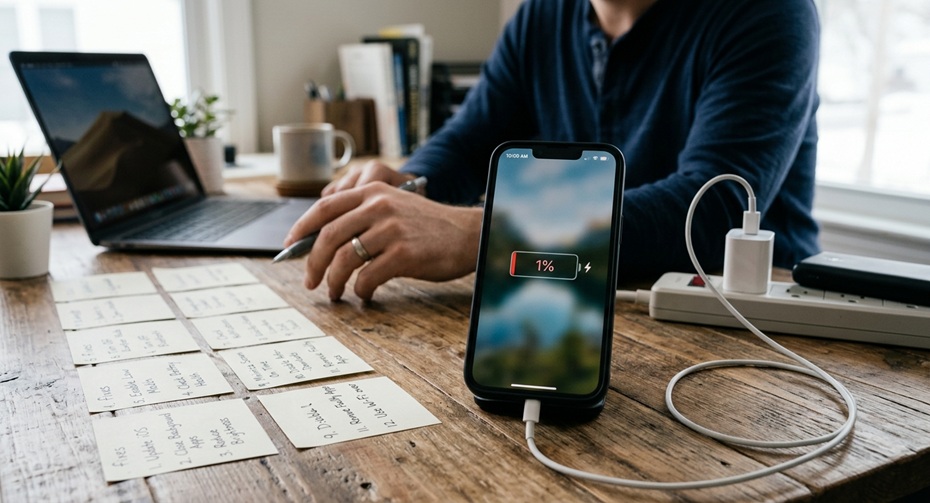
Your iPhone battery drops from 80% to 20% before lunch. You charge it overnight, and it still dies by dinner. You are not imagining this, and you are not alone.
Apple’s own support documentation confirms it. Right after a major iOS update, iPhones index files, download new assets, and update apps in the background. This process alone can drain your battery faster for a few days. iOS 26.1, released in November 2025, triggered a wave of complaints for exactly this reason.
Battery health also drops with age. Apple considers a battery “worn out” once its Maximum Capacity falls below 80%. That usually happens after 500 to 700 full charge cycles, or roughly two to three years of normal use. If your iPhone is that old, no software trick fixes it. You need a new battery.
This guide separates real fixes from YouTube myths. Every step here comes from Apple’s own support pages, verified user reports, and basic battery science. No app cleaners. No “magic” charging tricks. Just what works.
The Real Hassle Behind Owning an iPhone
iPhones are not cheap, and neither is keeping them running well. A battery replacement now costs $89 to $99 for most models, and up to $119 for the iPhone 17 Pro and iPhone Air. AppleCare+ covers it for free, but only once Battery Health drops below 80%.
That creates a strange trap. Your phone slows down and drains fast for months before Apple fixes it for free. Meanwhile, every big iOS update resets the clock on background drain. You update for new features and security patches, then spend a week fighting battery anxiety.
Add in social apps that refresh constantly, push notifications from a dozen platforms, and 5G networks that sip power even on standby. It adds up. The good news: most of it is fixable in ten minutes, without spending a cent.
Why Does Your iPhone Battery Drain So Fast in 2026?
Three forces drive most 2026 battery complaints. First, post-update indexing, which is temporary and normal. Second, background app activity from apps you rarely open. Third, ageing battery chemistry that no setting can reverse.
Apple has stated plainly that battery and thermal changes after an update are expected behaviour, not a bug. The device silently reindexes Spotlight search data and re-optimises photo libraries. This can take anywhere from 24 hours to a full week.
Knowing which category your drain falls into saves you time. Test the 48-hour rule first. If the drain continues after that, move to the settings-based fixes below.
What to Check Before You Try Anything Else?
Yes, it is your battery’s health. Examine it in this way:
Check Your Battery Health Percentage
Open Settings, tap Battery, then tap Battery Health & Charging. Look at Maximum Capacity. Above 80% means your battery is healthy. Below 80% means ageing hardware is your real problem.
No software fix restores capacity once it drops this low. If you see this number, skip ahead to Fix 12. Otherwise, work through the list below in order.
12 Fixes That Actually Work
Let’s explore all the ways to know what to fix your battery-draining problem:
1. Give It 48 Hours After Any iOS Update
Do not panic the day you update. Charge your phone fully, use it normally, and avoid force-quitting apps. Background indexing needs time to finish.
Check your battery percentage after two days. Most update-related drains resolve on their own by then. If it doesn’t, continue to the next fixes.
2. Turn Off Background App Refresh for Apps You Rarely Use
Go to Settings, then General, then Background App Refresh. Turn off the toggle for social media, games, and shopping apps. Keep it on for Mail, Messages, and Maps if you use them daily.
This single change often makes the biggest visible difference. Apps you open twice a week should not update themselves all day long.
3. Manually Update Every App
Open the App Store, tap your profile icon, then check for pending updates. Update everything manually instead of waiting for auto-updates.
Developers frequently release fixes for battery bugs introduced by new iOS versions. An outdated app fighting a new operating system wastes real power.
4. Turn Off or Simplify Always-On Display
Go to Settings, then Display & Brightness, then Always On Display. Turn it off completely, or keep the screen dark without a live wallpaper.
This feature keeps your screen partially active around the clock. On older Pro models especially, it is a proven, measurable drain.
5. Turn On Reduce Motion and Prefer Cross-Fade Transitions
Go to Settings, then Accessibility, then Motion. Turn on Reduce Motion, then turn on Prefer Cross-Fade Transitions underneath it.
This disables the 3D parallax lock screen effect and heavy app-switching animations. Multiple iPhone 16 and 17 owners reported real improvement after this exact change following the iOS 26 rollout.
6. Remove Widgets and Live Activities That Refresh Often
Long-press your Home Screen and remove weather, stock, and sports widgets you don’t check often. Also, disable Live Activities you don’t need in Settings > Face ID & Passcode > Live Activities.
Each widget quietly wakes your phone to pull fresh data. Sports scores and stock tickers are the worst offenders, since they update every few minutes.
7. Force Restart Your iPhone
On Face ID models, press Volume Up, release, press Volume Down, release, then hold the Side button until the Apple logo appears. This clears stuck background processes without deleting anything.
A force restart differs from a normal power-off. It resets memory and often stops a runaway process that a simple restart misses.
8. Reset Network Settings
Go to Settings, then General, then Transfer or Reset iPhone, then Reset, then Reset Network Settings. This erases saved Wi-Fi passwords and Bluetooth pairings, so note your Wi-Fi password first.
A phone stuck cycling between weakWi-Fii and cellular data drains power quickly. Users in verified forum reports saw standby time jump from 14 hours to 26 hours after this single reset.
9. Limit Siri Suggestions and Apple Intelligence Features
Go to Settings, then Siri & Search. Turn off Suggestions on the Lock Screen and in Search. If you don’t rely on Apple Intelligence writing tools or Image Playground, disable them in Settings, then Apple Intelligence & Siri.
These features analyse your habits constantly in the background. Turning off what you don’t actively use frees up a meaningful portion of your battery budget.
10. Check Your Battery Usage Screen for the Real Culprit
Go to Settings, then Battery, and scroll down to see usage by app. Tap the clock icon to see Screen On versus Background time for each app.
Focus on high background percentages, not just high total usage. An app that uses 40% of the battery while mostly running in the background is your actual problem, not your most-used app.
11. Manage Notifications With Scheduled Summary
Go to Settings, then Notifications, then Scheduled Summary. Add non-urgent apps, such as shopping, social, and news apps, to this list.
Every push notification briefly wakes your screen and radio. Bundling dozens of daily notifications into one or two summaries dramatically cuts this waste.
12. Replace the Battery If Health Is Below 80%
If Battery Health reads under 80%, none of the above fixes solves the root problem. Book a replacement through Apple, an authorised provider, or a trusted independent shop.
Apple charges $89 to $99 for most models and $119 for Pro and Air variants. AppleCare+ owners get this free once health drops below 80%, so check your coverage before paying anything.
Apps Younger Users Love That Quietly Drain the Battery
Gen Z and teen users often blame the phone rather than the apps. A few everyday favourites are frequent background-drain offenders.
TikTok preloads videos even when you’re not scrolling and keeps location and notification services active. Instagram and Snapchat both refresh Stories, Reels, and location data constantly in the background. Discord stays connected to voice servers and pings, even when minimised. YouTube autoplay and background audio keep the screen and processor working harder than expected. Have you forgotten X (Twitter)? It sounds strange, but our team has noticed that X drains your device’s battery like a vampire.
None of these apps is “bad.” They prioritise instant content over battery life. Disabling Background App Refresh for each one in Fix 2 solves most of this without deleting anything you love.
Frequently Asked Questions
Does closing apps from the app switcher save battery?
No. Apple has confirmed this actually costs more battery. Reopening a fully closed app from scratch uses more power than resuming it from the background.
Is Low Power Mode bad for my iPhone in the long term?
No. It only disables visual effects and background refresh. It does not throttle your processor or damage the battery over time.
Why does my battery drain fast even in standby mode?
Background app refresh, weak signal switching between 5G and Wi-Fi, and active widgets are the usual causes. Check Fix 2, Fix 6, and Fix 8 first.
Should I let my iPhone battery drain to 0% sometimes?
No. Lithium-ion batteries last longest between 20% and 80% charge. Frequent full drains speed up long-term capacity loss.
Does fast charging damage my battery?
Occasional fast charging is fine. Apple’s own charging hardware manages heat and voltage safely for daily use.
How long should an iPhone battery actually last on a single charge?
That depends heavily on model, age, and screen time. A battery with health under 80% should still last through a normal workday of mixed use.
Final Words
Fast battery drain feels alarming, but it rarely means your iPhone is broken. Most cases trace back to a recent update, an overactive app, or a setting you never noticed.
Work through these 12 fixes in order. Start with patience after an update, tighten your background settings, then check Battery Health last. If your battery truly sits below 80%, a $99 replacement almost always beats buying a new phone.
Your iPhone was built to last for years, not months. A little settings maintenance, done once every few months, keeps it feeling new far longer than most people expect.